WeMarket delivers record results and invests in the future
WeMarket ends 2024 with the highest gross profit in its history and a bottom line result of 3.1 million.
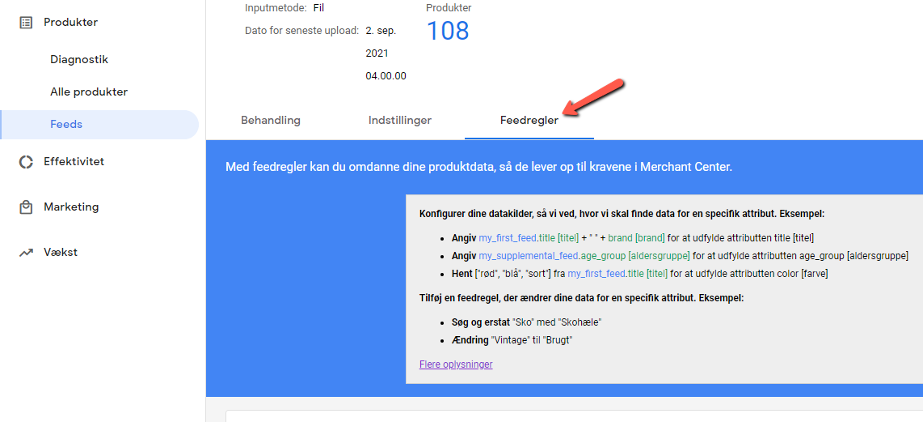
Get an overview of feed rules in Google Merchant Center and learn how to optimise your product feed to improve visibility and sales performance.
– The right feed ensures relevance for your customers, which pleases both them and Google!
Depending on which CMS you use, you may encounter different challenges when setting up or mapping your product feed. Sometimes, product data may be missing, or a specific attribute may not be available. As a result, there are numerous tools, plugins and third-party systems designed to make the process as simple as possible. Some are free, but most (read: the majority) require a monthly subscription.
However, one of the most overlooked tools is actually Google’s own within Google Merchant Center (GMC). In some cases, a third-party solution is necessary, depending on the issue, but many minor adjustments can be made directly in the Merchant Center, whether you are missing a specific attribute or need to edit attribute values in your feed.
In this post, I will introduce some basic tools you can use in GMC via feed rules, so you can process your product feed with additional layers and thereby improve performance over time.

Product titles are the most important factor in determining whether your products are found in a search. Of course, all other parameters also have an impact, but your product titles have the greatest influence, as they identify the item you are selling.
You can use feed rules in GMC for many purposes related to your product titles – both to improve the titles themselves, and to use the content of your titles to enhance other parts of your feed.
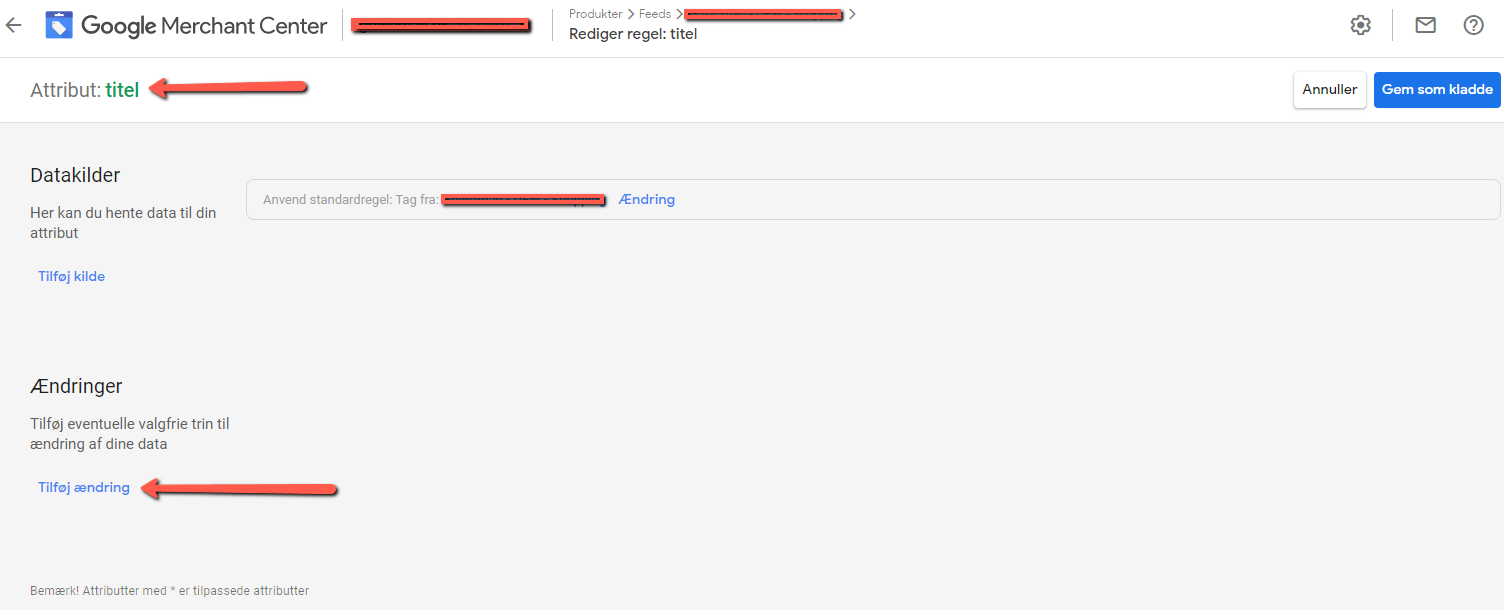
The simplest example is when some text is missing from the title, such as a brand name that needs to be included. When creating rules, there are two main approaches: you can add a source, or you can make a change. Adding is used to insert a value in an attribute that is currently empty. A change is used to edit an existing attribute value.
So if you want to edit your title to include a brand, you should use “Changes”.

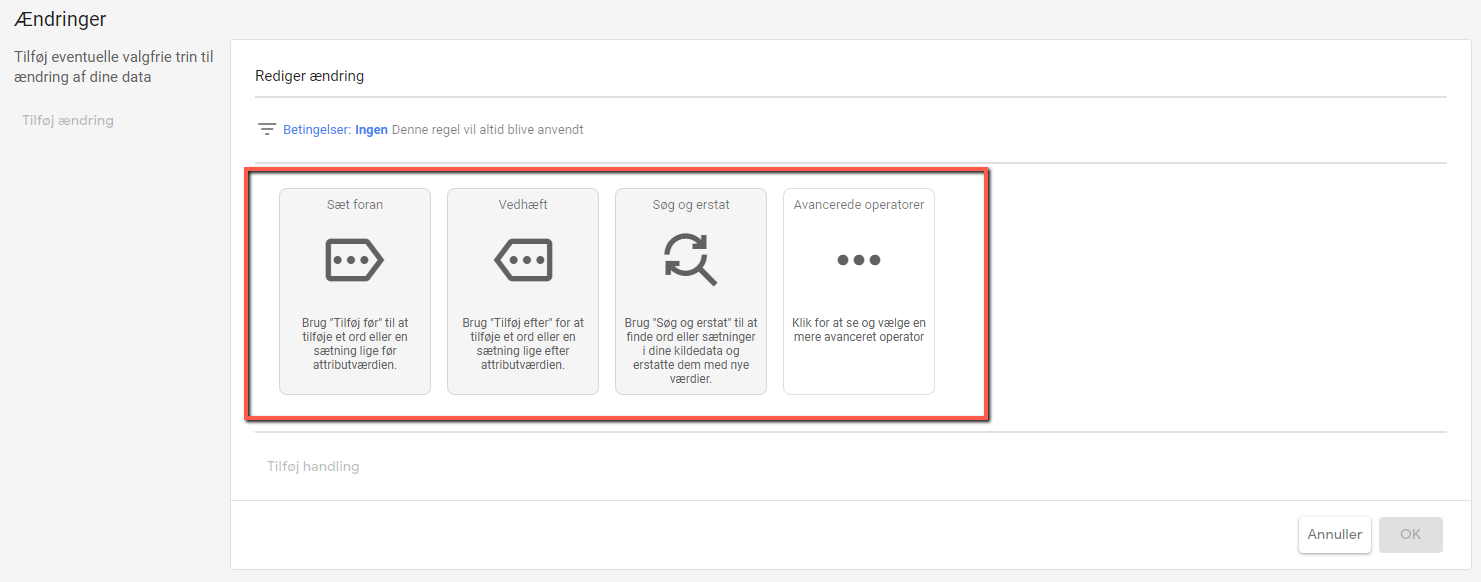
Within changes, you have three primary options, as well as some advanced ones:

You can insert something at the beginning of your title, append (at the end), or use find & replace. Find and replace works as you would expect from other systems, and is mainly used to edit text in the middle of titles. Choose the function that best matches where the brand should be inserted.
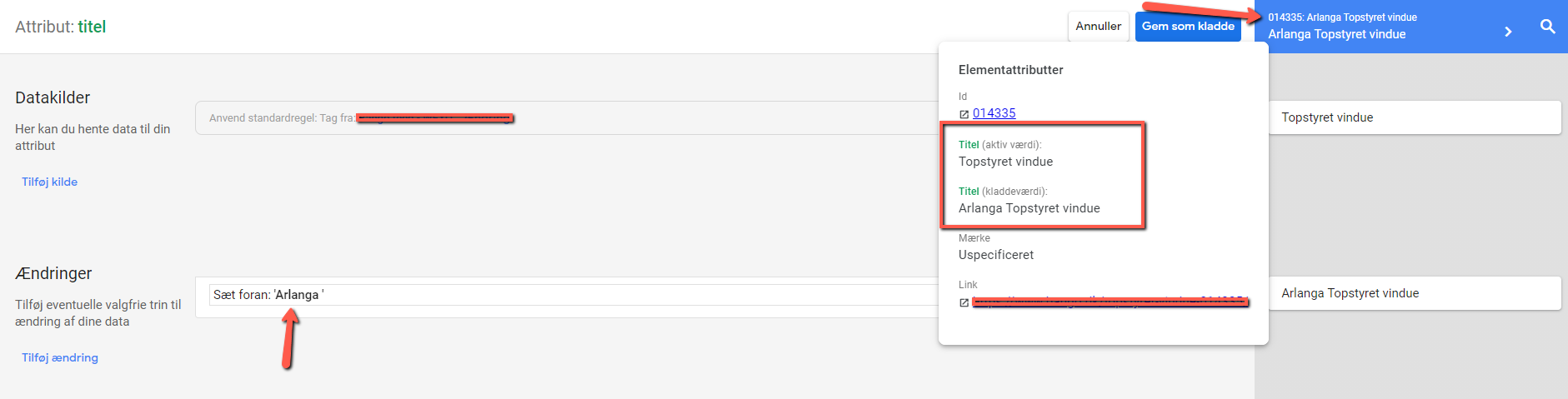
You can then either enter your own value to be added, or dynamically pull a value from another attribute. If you already have the brand in the brand attribute, you can pull the brand into the title from there:

Use the preview function to check if your changes work by hovering your mouse over the blue field in the top right corner:

If you want to preview a specific product, you can also search for the product ID in the function.
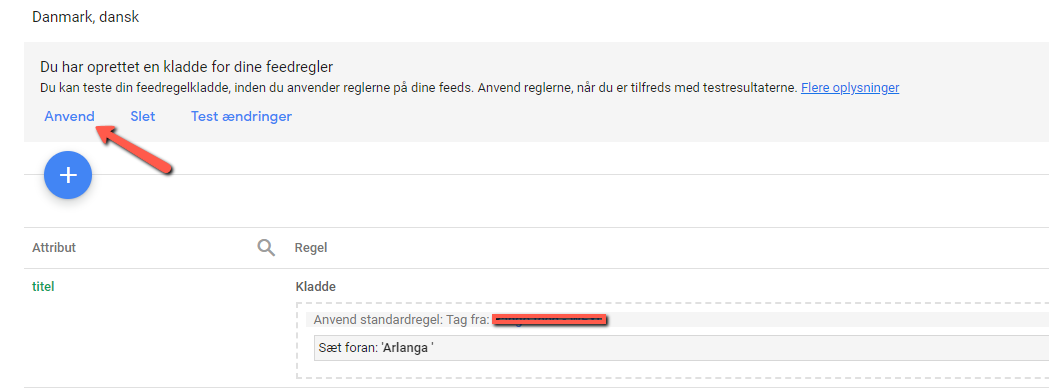
Next, save your changes as a draft, then click apply to implement them:

When setting up your rules, you often only want them to apply to specific items, rather than your entire product feed.
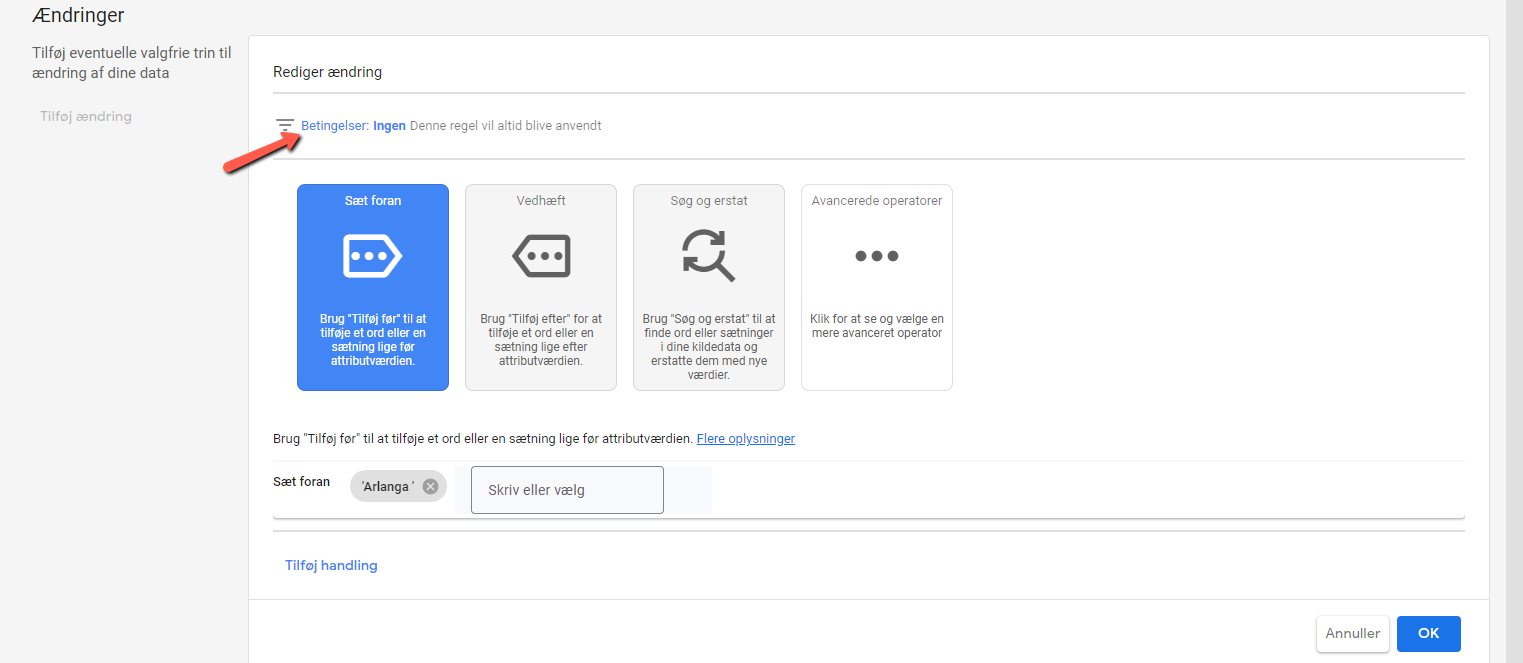
To achieve this, you can set certain conditions so that only the products you want are changed:

For example, you may want a rule to apply only to a specific category, if the title contains a certain word, or to all products from a particular brand. Use the attributes in the rest of your feed to define when your rules should apply. Again, use the preview function and save.
After some time, you will become more familiar with the feed rules interface. Now you can begin to enrich your feed with any missing data. The more relevant content you can provide in your product feed, the better.
It may be beneficial to work with fields such as:
To do this, use the other method, “Add source”. The principle is the same, where you can again set the correct conditions for which products should have specific values. We often see clothing brands include the colour in the product title, but it is still missing in the colour field in Google’s system. Here, you can easily set a condition so that, for example, when “Red” appears in the product title, the attribute “colour” is assigned the value red. This makes it easier for Google to understand that the product is red, helping to show your product in relevant searches.
You should now have some basic tools to improve your product feed. There are always more technical aspects you can work on to boost your visibility in Google Shopping.
If you need advice or assistance, you are always welcome to contact us here at WeMarket.
At WeMarket, we offer businesses a benchmark report that compares their marketing efforts with their key competitors. You decide which competitors we should compare against.
We specialise in selling physical goods online and growing webshops – and now you can benefit from this expertise, even if you’re not already a client.
It’s completely free.